|
SIMAGIS Popular Science Templates
|
"Work Table" template - solutions designer
|
Do you want to make own imaging algorithms?
Use SIMAGIS Work Table.
Template Walkthrough
 |
Use Easy Designer tab to create a chain of linked imaging functions. |
|
Tune function settings on Customize tab.
Double-click on cells, open Preview and Editing windows, view images with the required level of detail and precisely customize functions. |
|
Add functions to your algorithm. Delete the unnecessary functions using delete button. Hit delete all button to
remove functions and their results from the worksheet. |
|
 |
|
"Batch Designer" template
|
| Batch Designer is an imaging solutions design tool. It generates a chain of linked imaging functions that are sequentially applied to sets of
images.
Template Walkthrough
|
Press load... button to place images into table cells. |
|
Choose the source image in Designer section using Run with button. To accelerate processing, select "draft"
or "medium" image quality. |
|
Use Designer section to build a chain of operations that will be applied to source image(s). Specify operation parameters
using Customization section.
To delete a function from the chain, select it and press delete button in Designer. To delete all functions and results, press delete all. |
|
Use Processing section to process selected image or the whole batch in a full-size mode. |
|
|
|
"Thumbnail Creator" template
|
Create a thumbnails page for your web gallery in few clicks.
Place images in SIMAGIS table, arrange them in the way you want, and get the results.
Template Walkthrough
|
General tab. Load images into spreadsheet cells. Specify image titles and descriptions. Select quality level for resulting
JPEG images. |
|
Style tab. Select layout, colors and other style elements of the resulting page. |
|
Sizes tab. Determine the rules for resizing images and making thumbnails. |
|
Files tab. Specify destination folder, subfolders for thumbnails and resulting images, rules for naming the derivative
files. |
|
Press Run button and view the results. |
|
|
|
"Customize by Example" template
|
| Customization by Example that shows you the behavior of image processing functions with various settings.
Template Walkthrough
|
Load any image into A1 cell, or leave A1 empty. |
|
Select control argument(s). |
|
Set definition areas of control argument(s), values of remaining arguments, and the number of rows and columns in the resulting
table. |
|
Press the Run button and view results. If you did not load any image during the first step, results will be calculated for
demo image. |
|
Select some cell and press Real image button to view the result for the full-size image. |
|
Copy the most suitable result to your work table. |
|
|
| Examples |
 |
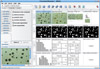
Work Table Screenshot:
Processing & Measuring |
|

Apply Mask of Bounds Function Screenshot |
|

Photo Enhancement in Batch Designer |
|

Hue and Saturation Function
Screenshot |
|

Thumbnail Creator Screenshot |
|

Customize by Example:
Round Motion Blur Function |
|
|